


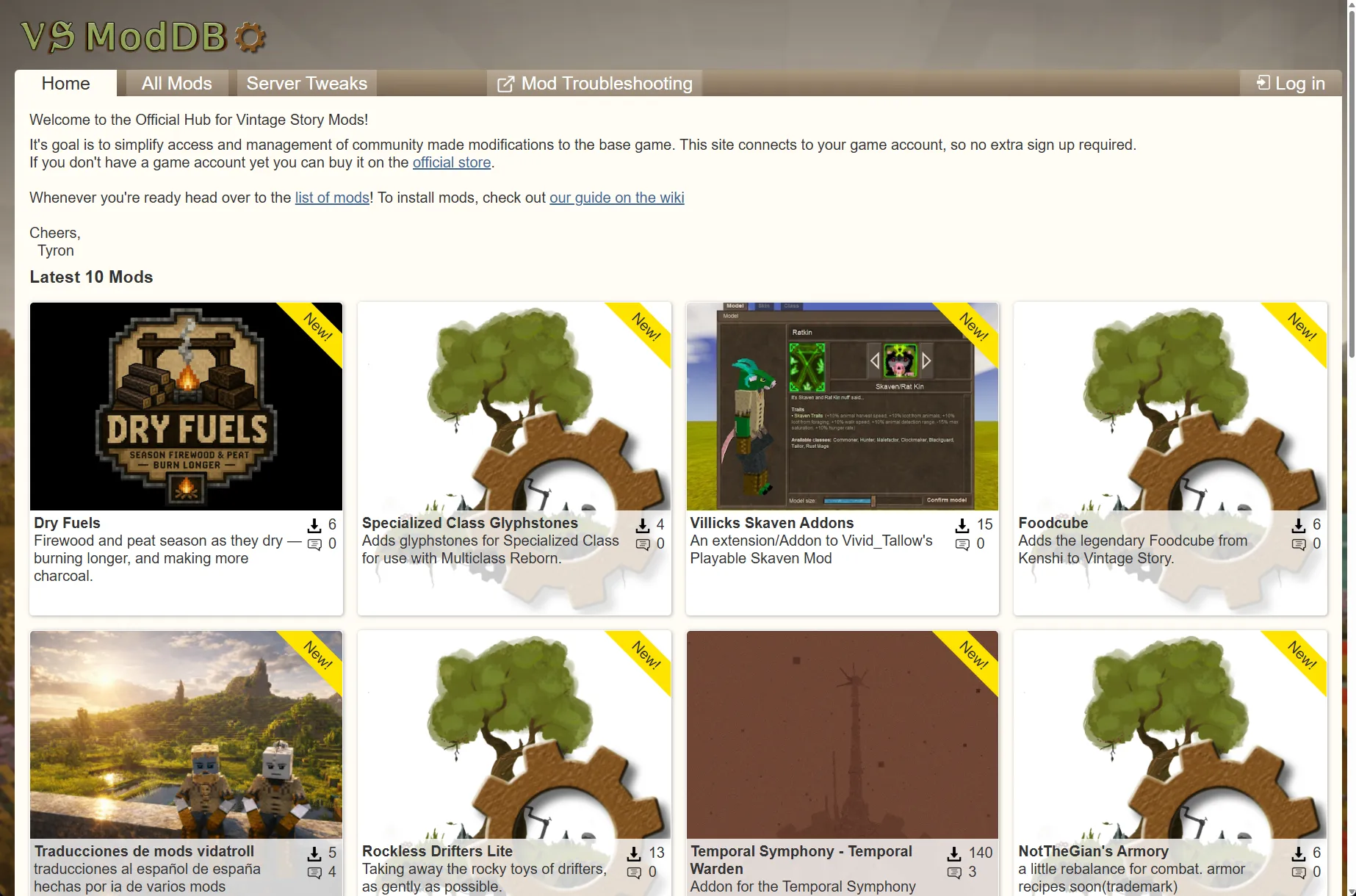
With Vintage Story you can have your cake and eat it too. Hundreds or even thousands of player-made modifications ("mods") can be added to the already rich, high-performance base game. It is a very mod-friendly game.
The best place to look for mods is the official Mod DB. You can also find additional mods on the official forums. Alternatively, you can browse our mod catalog for more mods for Vintage Story.
Mods made for older versions of the game may also work on newer versions, but compatibility is not guaranteed. Always check a mod’s compatibility with your version of Vintage Story before installing it.
TL;DR
- Download the mod (usually a .zip file).
- Move it into the game's Mods folder: game's main menu → Mod Manager tab → Open Mods Folder button (in the bottom-right corner).
- In the Mod Manager, enable or disable mods as you want. You can reload the list of mods using the Reload Mods button.
Do not extract the archive — just place the .zip file into your Mods folder.
Modded Multiplayer
Starting from Vintage Story 1.16, connecting to a modded server is even easier: your game will automatically set up the correct mods for that server.
Your game creates a sub-folder for each server's mods in the ModsByServer directory (named by server domain name or IP address):
| OS | Path |
|---|---|
| OSWindows | Path%AppData%\VintagestoryData\ModsByServer |
| OSLinux | Path~/.config/VintagestoryData/ModsByServer |
| OSmacOS | Path~/Library/Application Support/VintagestoryData/ModsByServer |
Multiplayer Pro Tip
Sometimes a mod author fixes a bug but does not change the mod's version in the archive. In that case, your game will not download the new version because it thinks it already has the correct one. If you encounter bugs or crashes that might be caused by a mod:
- Quit the server.
- Delete that server's mods sub-folder in ModsByServer.
- Reconnect to the server and choose Download mods in the Missing mods window.
For older versions (prior to 1.15): mods must be installed manually, the same way as in single player. Your mod setup — including version numbers — must exactly match what the server requires, or you may be unable to join or experience crashes.
Making Backups
Before a big change, back up your worlds:
- before adding new mods;
- before removing a mod;
- before updating your version of Vintage Story.
Installation in Detail (Single Player)
Step 1. Locate the downloaded file
Most mods download as a .zip file. You can find it via:
- your browser's download notification → "Show in Folder";
- the downloads list (Ctrl+J in Chrome);
- your Downloads folder in File Explorer.
Step 2. Open the Mods folder
Through the game: main menu → Mod Manager tab → Open Mods Folder button (in the bottom right corner).
Manually:
| OS | Path |
|---|---|
| OSWindows | Path%appdata%\VintagestoryData\Mods |
| OSLinux | Path~/.config/VintagestoryData/Mods |
| OSmacOS | Path~/Library/Application Support/VintagestoryData/Mods |
On Windows, you can open the folder quickly with Win+R and typing %appdata%\VintagestoryData\Mods.
Step 3. Copy the mod
Drag and drop the .zip into the Mods folder, or use cut/copy and paste. Do not extract the mod zip.
Step 4. Reload mods
In the Mod Manager, click Reload Mods — or close and reopen your game. The mod should appear in the list. Enable it and enjoy your modded Vintage Story experience!
Two Mods Folders
There is a second Mods folder in the game's installation directory. Both folders are checked for mods. The installation folder is normally used only for the mods that come with the base game (Essentials, Survival, Creative). Downloaded mods should be placed in %appdata%\VintagestoryData\Mods.
In specialised situations you can customise mod folder locations by editing clientsettings.json and the modPaths config.
The Base Game Is a Mod!
The game comes with three pre-installed mods:
- Essentials
- Creative Mode
- Survival Mode
These three together are the normal game. Leave them enabled: together they are the familiar Vintage Story.
Getting Started with Modding
It is pretty easy to make your own mod for Vintage Story. You do not have to be a coder — around half of mods can be made without writing code. Tweaks to existing game assets, recipes, models, and textures can be made using JSON patch files. New blocks, items, and creatures can be added.
For more help, see Modding: Getting Started on the wiki.
Source: Adding mods — Vintage Story Wiki